
Modern Screen Capture Explained: PipeWire, Wayland Portals and Windows Graphics Capture
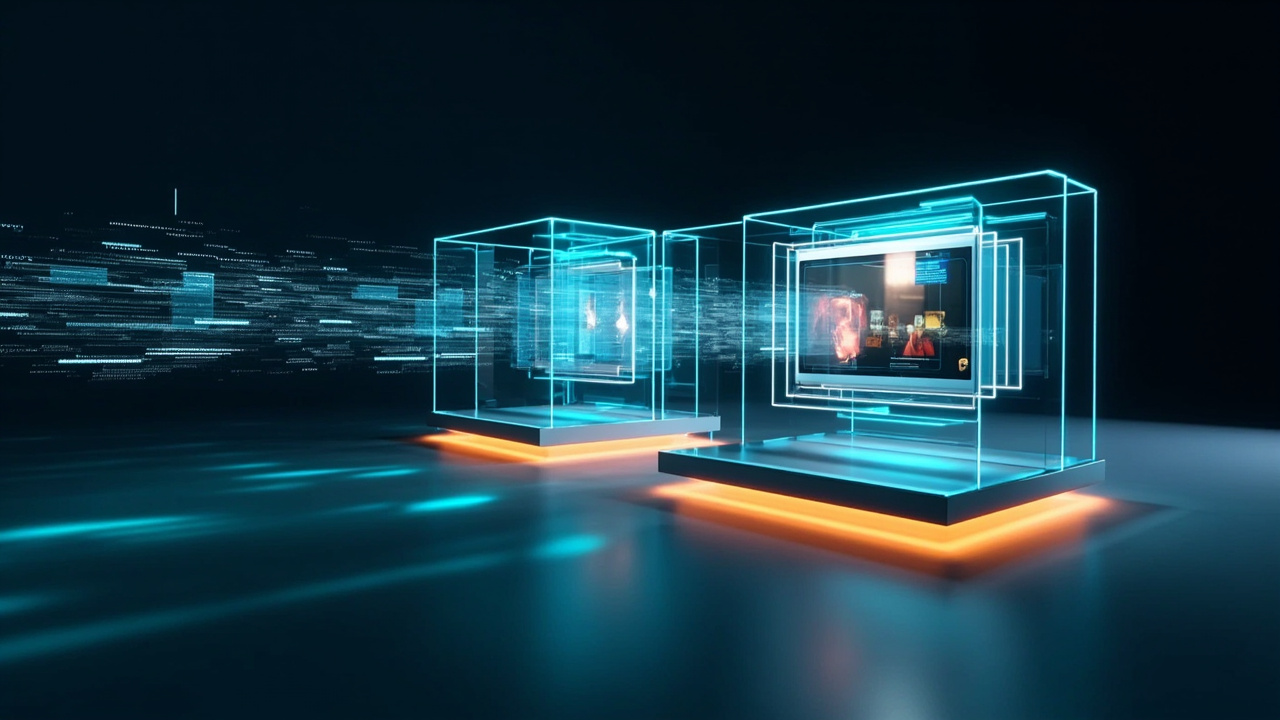
Technical guide | November 2026. Sharing a window in a video call or recording a desktop tutorial relies on more than a single screenshot function. Modern desktop systems coordinate capture authorization, video transport, buffer management and application rendering. On Linux, Wayland, XDG Desktop Portal and PipeWire each play distinct roles. On Windows, Windows Graphics Capture supplies a frame-oriented API. This report examines what these interfaces do today, their security boundaries, lifecycle and practical engineering trade-offs.
1. Screen capture is not the same as recording a video
A still screenshot contains one image. Screen capture can also mean an ongoing stream of frames. Recording a video file requires additional encoding and storage decisions. Neither PipeWire nor Windows Graphics Capture requires writing an MP4 to disk: an authorized application can receive frames in memory and decide whether to preview, transmit, encode or discard them. The absence of a video file, however, does not mean the receiving software cannot store or forward the content.
2. Wayland, portals and PipeWire: three separate responsibilities
Wayland defines a modern display protocol and compositor-centered desktop architecture. Compositors such as GNOME's Mutter and KDE's KWin manage window presentation and access to screen content. Ordinary Wayland clients are not generally granted unrestricted access to other applications' pixels.
XDG Desktop Portal exposes an authorized D-Bus interface for certain desktop operations. Its org.freedesktop.portal.ScreenCast API allows an application to request a session, select permitted sources and obtain a controlled connection to the capture streams.
PipeWire is the multimedia framework that transports audio and video streams between applications. It manages graph nodes, format negotiation, buffers and low-latency transfer; it is neither an all-purpose screen-recorder interface nor a universal authorization system.
3. The Linux ScreenCast lifecycle
Application requests a screen share
             |
      D-Bus / Portal
             |
     User selects source
             |
      Wayland compositor
             |
        PipeWire stream
             |
      Authorized consumer
The official ScreenCast interface defines a concrete workflow:
CreateSession()allocates a session.SelectSources()configures the source types; it can be called only once for that session.Start()generally prompts the user to select what may be shared and returns authorized streams.OpenPipeWireRemote()hands back a file descriptor for connecting to those streams.- The consumer receives buffers, reacts to changes and tears down the session when finished.
Current portal documentation describes stream properties including geometry, source type and targeting identifiers. Version 6 deprecates long-term reliance on recyclable numeric node IDs and recommends using pipewire-serial for stream targeting where supported.
4. Monitors, windows, virtual sources and cursor modes
The ScreenCast interface defines monitor, application-window and virtual source types; desktop backends may implement different subsets. Cursor handling is also negotiated: hidden, embedded directly in the image or delivered as stream metadata. A presentation tool, remote-support session and tutorial recorder may therefore require different cursor options. Never assume a backend supports a mode it does not advertise.
5. Restoring a previously authorized session
ScreenCast supports optional persistence using persist_mode and one-use restore_token values, subject to compositor and portal support. These mechanisms can reduce repeated prompts but do not create permanent unrestricted desktop access. Permissions can be revoked, selected windows may disappear, and restored sessions must respect the portal's documented lifecycle. Capture should still be clearly signaled to the user.
6. Screen capture does not grant input control
The RemoteDesktop portal is a separate interface for requesting pointer, keyboard or touchscreen access. It can coordinate with ScreenCast in supported sessions. This distinction explains why one application can share a screen while another, with additional permission, offers remote assistance or desktop control. Capturing pixels is not equivalent to acquiring the authority to type or click.
7. Windows Graphics Capture: a frame-based API
The Windows.Graphics.Capture namespace provides APIs to obtain frames from a selected display or application window. A common implementation obtains a GraphicsCaptureItem, creates a Direct3D11CaptureFramePool and GraphicsCaptureSession, and handles frame-arrival notifications.
Windows application
        |
     System picker
        |
  GraphicsCaptureItem
        |
 Direct3D11CaptureFramePool
        |
 GraphicsCaptureSession
        |
 Frame consumers / optional encoding
Microsoft documents how to check support, launch capture UI, acquire frames, manage resizing and handle device-loss conditions. The API enables snapshots, live sharing and further video processing without requiring persistent recording.
8. The visible capture border in Windows
Windows commonly displays a visible colored border around an actively captured window or display. Microsoft also documents a separately authorized borderless capability, involving an explicit request with GraphicsCaptureAccess.RequestAccessAsync and a suitable package declaration. It is not a legitimate basis for silently hiding capture from a user who has not consented. Some other applications' border requirements can still affect the displayed indicator.
9. What happens to frames after capture?
Frames can be previewed, streamed, converted, encoded for a file or discarded. Buffer ownership, pixel formats and GPU-to-CPU transfers affect latency and resource usage. A careful application must release resources promptly and recover from source resizing, changing displays, suspended sessions or lost graphics devices. Capturing more pixels or more frames than necessary adds cost without necessarily improving the result.
10. Comparing the Linux and Windows models
| Capability | Wayland + Portal + PipeWire | Windows Graphics Capture |
|---|---|---|
| Consent | Desktop-managed portal dialog | System selector and supported access rules |
| Source selection | Monitor/window/virtual when supported | Compatible windows and displays |
| Frame transport | PipeWire streams and buffers | Direct3D frame pool |
| Mandatory MP4 file | No | No |
| Remote control | Separate RemoteDesktop permission | Not automatically granted by capture |
| Portability | Varies by compositor and portal backend | Varies by Windows version and capture source |
11. Established use cases
Video conferencing shares a selected window or entire desktop. Screen recording turns frame streams into a tutorial or archival file. Live broadcasting combines captured windows with other media sources. Remote technical support displays authorized desktop content, sometimes alongside separately granted control. Accessibility utilities use captured presentation data where appropriate. Software development tools can capture visual output for documentation and defined visual tests. These are existing application categories, not speculative capabilities.
12. Common engineering failures
- Missing Linux picker: check that a compatible
xdg-desktop-portalbackend is installed and running. - Capture starts but displays no frames: inspect the PipeWire remote, stream negotiation and session state.
- Changed monitor or window: handle stream closure, dimensions and resource replacement.
- Broken pointer rendering: verify negotiated cursor mode and metadata processing.
- Unexpectedly high CPU/GPU use: inspect resolution, frame cadence, memory copies and video encoding.
- Restricted Windows content: some surfaces and protected content cannot be captured normally.
- Restore token fails: permissions may have been revoked or the source may no longer exist.
13. Privacy and informed consent
Desktop streams may expose private conversations, personal data or confidential work. Prefer window-level selection where feasible, clearly identify when capture is active, allow immediate cancellation and minimize retained visual data. Processing frames only in memory avoids the creation of unnecessary files but cannot by itself prevent a receiver from copying or disclosing those frames. Technical permissions also do not replace contractual duties, copyright or data-protection obligations.
14. Engineering checklist
- Define whether the task needs a single screenshot, a transient stream or a recording.
- Ask the user for the smallest appropriate source and scope.
- Use supported permission prompts; do not circumvent consent dialogs.
- Test multiple Wayland compositors, portal implementations and Windows versions.
- Verify cursor modes, scaling, resolution changes and session revocation.
- Measure latency, memory traffic, CPU/GPU load and encoding overhead.
- Document clearly what is captured, stored, transmitted and deleted.
Conclusion
Modern Linux and Windows systems already provide strong foundations for controlled window and desktop sharing. PipeWire is a multimedia transport, XDG Desktop Portal mediates access on many Wayland desktops, and Windows Graphics Capture exposes frame-oriented capture APIs. Recording an MP4 remains an optional application decision, not a requirement imposed by those interfaces. Understanding the separation between authorization, transport and processing leads to safer and more reliable desktop software.


Comments 0
No comments yet.
Leave a Comment